

Guide
Sessions in Fotspor: Guide to Quiz Answers and Leaderboards
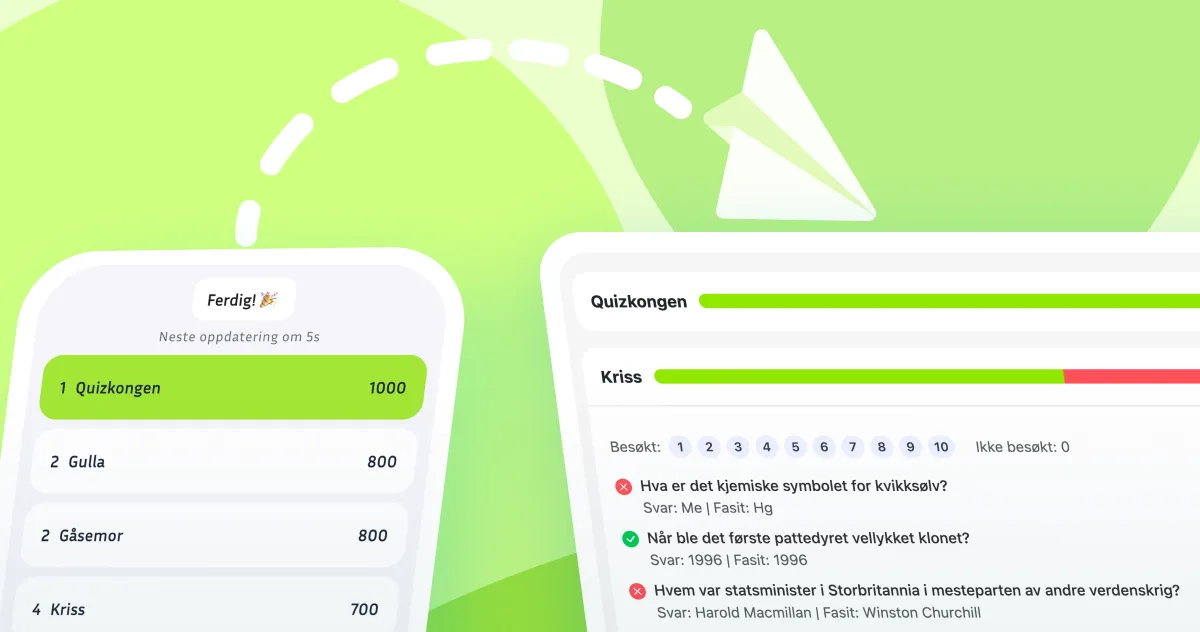
With sessions, you can collect quiz answers automatically, follow participant progress, and keep motivation high with leaderboards.
Imagine finishing a route and already having a clear overview of what participants answered, who may need follow-up, and who is leading the class challenge.
That is exactly what Sessions is designed for. Sessions collect answers automatically, give you better insight while the activity is still running, and make the experience more engaging for participants through optional leaderboard features.
For teachers and schools
Sessions are especially useful for outdoor learning and class activities. Teachers can run one route for multiple classes, compare progress in a structured way, and quickly identify which quiz topics need follow-up.
What is a session?
A session is the answer collection layer for routes that include quiz checkpoints. When leaderboard is enabled, Fotspor also calculates scores and rankings automatically.
Participants can see a top-5 list and their own placement either during the route or after completion, depending on your settings.
You decide whether leaderboard should be visible at all, and whether ranking updates should appear live or only at the end.
After the session, you can review each participant's answers in detail and get a clearer picture of how the group performed.
With one session, you can:
- Collect participant answers automatically.
- Run a leaderboard that shows the top 5 participants.
- Show live ranking updates after each question.
- Reuse the same route for different groups, for example Class A and Class B.
Before you start
When a route has an active session, you cannot edit content that affects quiz logic until the session is closed.
This means you cannot:
- Change questions.
- Add or remove questions.
- Remove checkpoints that contain quiz content.
If you need to make any of these changes, close the session first. After editing the route, create a new session to collect answers again.
Quick start: create your first session
- Create a route with quiz content. Sessions only collect answers from quiz checkpoints, so your route must include at least one quiz.
- Tap "Answers" in the top navigation.
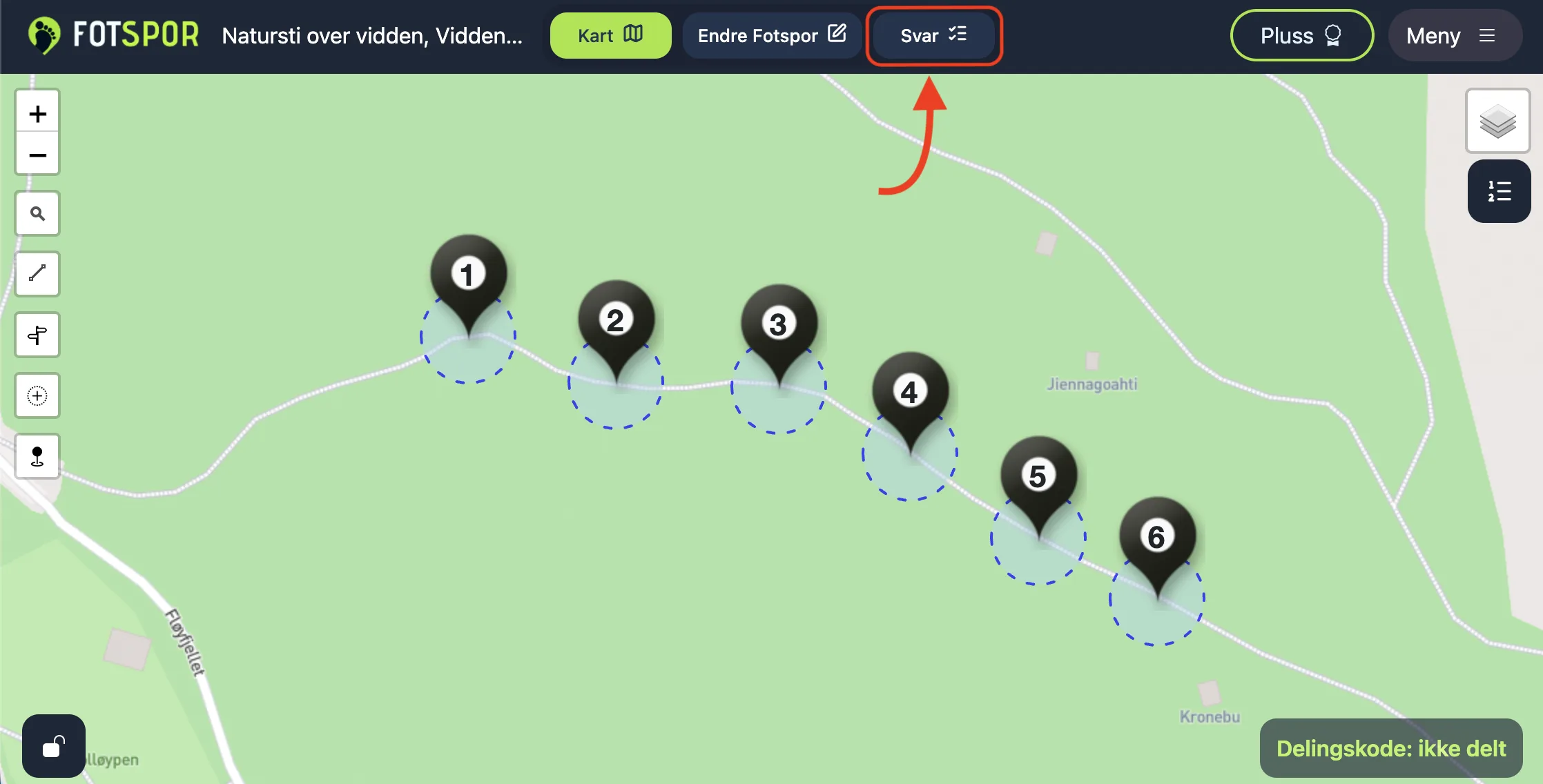
Open the Answers tab to create sessions and review answers and leaderboard data from existing sessions. - Tap "Create session".
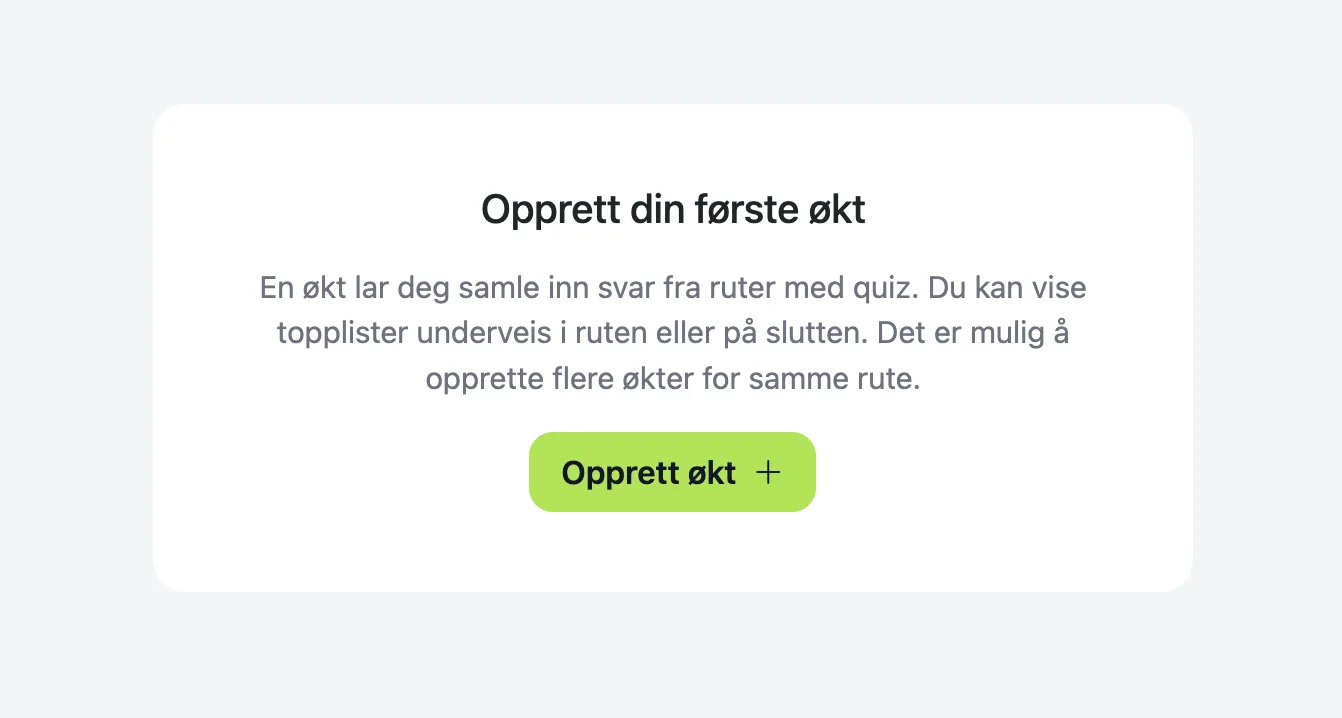
If the route does not already have a session, this is the first screen you will see in the Answers tab. You can also run more than one session on the same route. - Give the session a clear name. A name like "Class A" or "Grade 7 - Group B" makes it easier for you and participants to choose the correct session.
- Choose session settings and create.
On the right side of the session view, you can control options such as leaderboard and live updates. If you only want participants to see final rankings, disable live updates. If you do not want ranking at all, disable leaderboard.
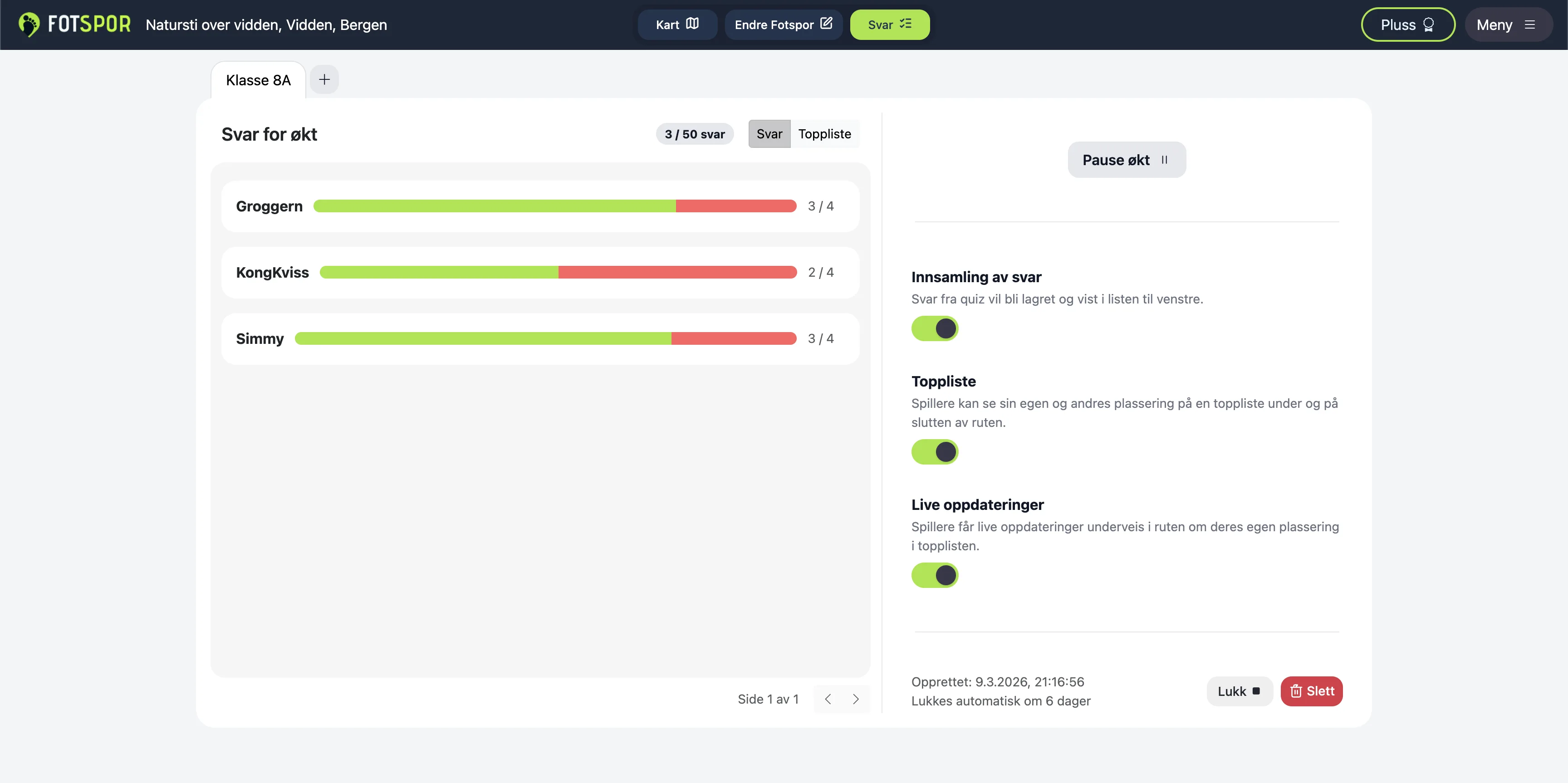
Incoming answers are shown on the left. Session settings are shown on the right.
Session settings
Leaderboard
If you want to increase engagement, leaderboard is often an effective tool. A light competitive element can motivate participants to stay focused and complete the route carefully.
New sessions have leaderboard enabled by default. Participants can see both their own placement and a top-5 list with the highest scores.
If you disable leaderboard, participants will not see points or rankings, either during the route or after completion.
Live updates
When live updates are enabled, participants receive score and ranking updates after each question. If they are close to the top 5, they can also see current leaderboard status while moving through the route.
If live updates are disabled, participants only see their placement when they have completed the route.
Follow participant answers
Answers appear in the Answers panel as participants submit them. You can open each participant to review which questions they have answered, which answers were correct, and where they may need support.
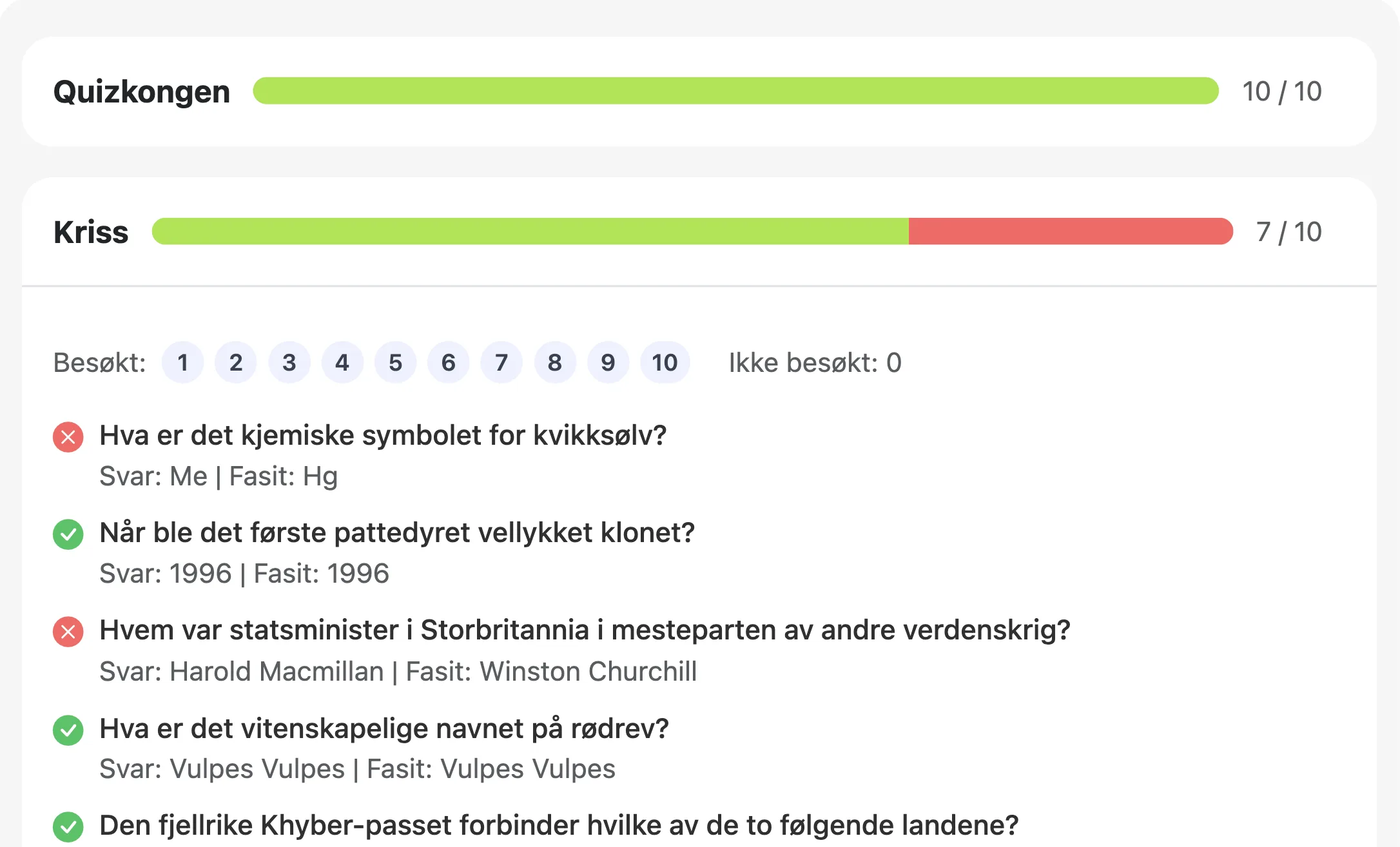
Answers are usually sent after each question. If a participant is offline or has unstable connectivity, answers can sync later.
Reuse the same route for new groups
You can create a new session without deleting previous ones.
Tap the "+" icon next to the session tabs.
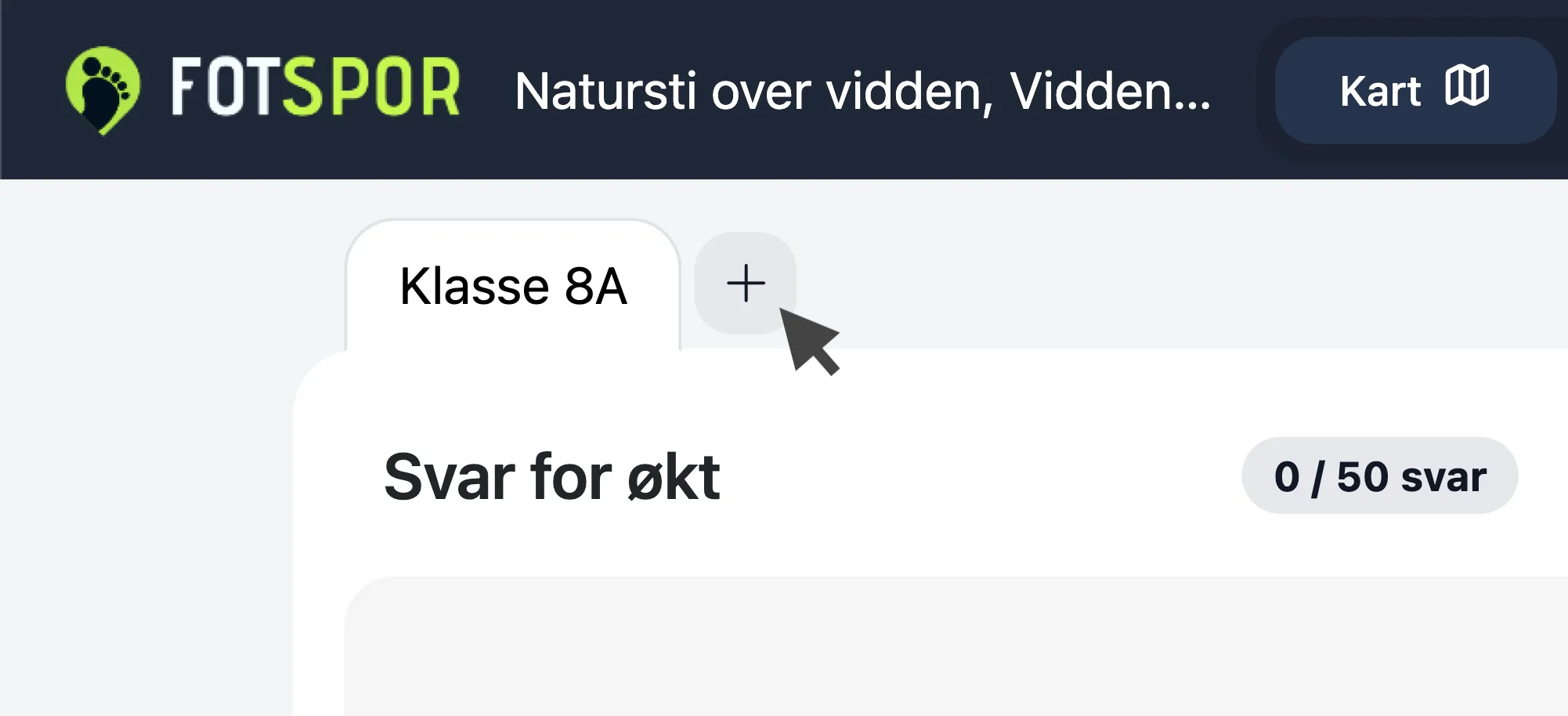
If multiple sessions are active at the same time, participants must choose which session to join before they begin. To avoid confusion, it is best to close sessions that are no longer in use.
Pause and close sessions
- Use Pause when you want to temporarily stop new participants from joining.
- Use Close when the session is finished and you want full editing access again.
- Sessions are automatically closed 7 days after creation.
Offline usage
Some routes run in areas with poor mobile coverage. In schools, some participants may also have limited data access. Fotspor therefore supports completing routes fully offline, including routes with sessions.
If participants still have unsent answers, they are prompted to submit before finishing the route. Answers can also be sent later from the activity log when connectivity returns.
Under active development
Sessions is the first step in replacing pen-and-paper workflows for outdoor learning and activities.
Our goal is to make route activities easier to run, save time for organizers, reduce unnecessary waste in nature, and create a more engaging experience for participants.
Ready to run your first session?
Sessions is part of Fotspor Plus.
Ready to create your first session?
Create a route in minutes and start your first session right away.